Are you a Canva user looking to get more out of this powerful design tool? Whether you create social media posts, presentations, or marketing materials, mastering Canva can save you time and boost your creativity.
You’ll discover tips and tricks that can transform how you work, helping you design faster and smarter. Keep reading to unlock the secrets every Canva user should know—and watch your projects stand out like never before.
Mastering Canva Basics
Canva is a popular tool for creating beautiful designs quickly. Knowing the basics helps users make the most of its features. Learning simple steps makes design tasks easier and faster. This section explains key points to start with Canva confidently.
Navigating The Interface
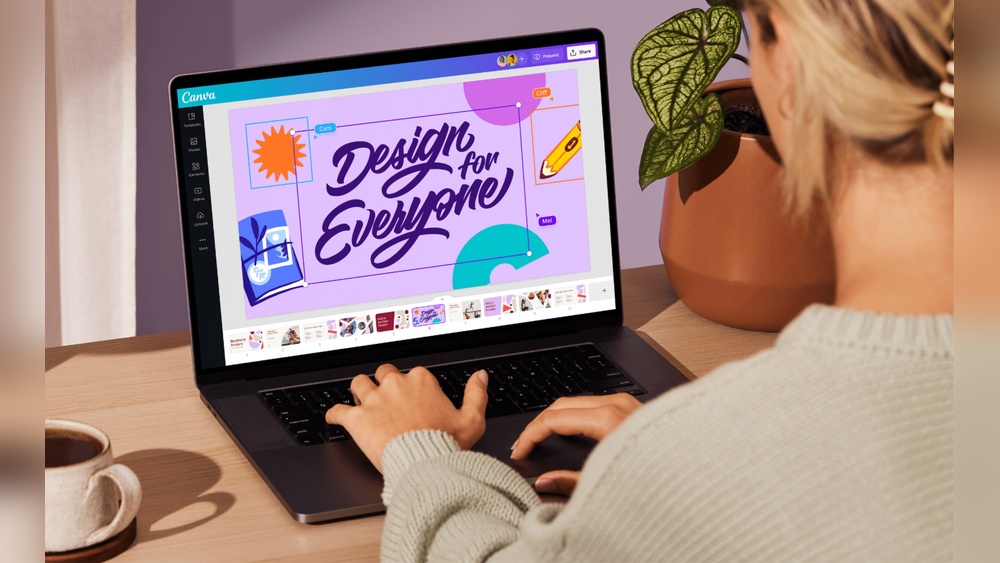
The Canva interface is clean and easy to use. The left panel shows tools and design elements. The center area is your workspace where designs appear. The top bar contains options like undo, redo, and download. Spend time exploring each part to feel comfortable.
Essential Tools To Know
Canva offers tools for text, images, and shapes. The text tool lets you add and edit words easily. Use the photo tool to upload or find pictures. The element tool includes lines, icons, and frames. Adjust colors and sizes with simple sliders. These tools help create unique designs fast.
Templates And When To Use Them
Templates save time by providing ready-made designs. Use them for posters, flyers, or social media posts. Templates give a good starting point and design ideas. Customize colors, fonts, and images to fit your needs. They help create professional looks without design skills.
Credit: backlinko.com
Advanced Design Techniques
Advanced design techniques in Canva help users create unique and professional visuals. These methods go beyond basic tools. They allow deeper control over design elements. Users can customize, organize, and maintain brand consistency easily.
These skills improve workflow and design quality. They help save time and reduce errors. Understanding these techniques can elevate any Canva project.
Customizing Elements Creatively
Canva offers many options to change elements. Users can adjust colors, sizes, and shapes. It is possible to rotate or flip images and icons. Changing transparency adds subtle effects. Users can also add filters to photos. These tweaks give designs a personal touch. Creativity grows with small, smart changes.
Using Layers And Grouping
Layers help organize design parts. Each element sits on a different layer. This setup makes editing easier. Grouping combines several elements. Users can move or resize groups at once. This saves time during adjustments. Layers and groups keep projects neat. They prevent accidental changes to other parts.
Incorporating Brand Kits
Brand Kits store logos, colors, and fonts. Using these kits ensures design consistency. Users apply brand colors quickly. Fonts stay uniform across all materials. Logos remain the same size and position. Brand Kits make teamwork smoother. They keep every design on-brand and professional.
Time-saving Shortcuts
Saving time in Canva helps you create designs faster. Using shortcuts cuts down on extra clicks. This lets you focus on making your work look great. Simple tricks can speed up your whole process.
Keyboard Shortcuts For Efficiency
Keyboard shortcuts let you do tasks quickly. Press keys to copy, paste, or undo actions fast. Use shortcuts to align objects perfectly in seconds. This reduces mouse movement and clicks. It keeps your workflow smooth and steady.
Duplicate And Resize Tricks
Duplicating objects saves time on new shapes or text. Hold the Alt key and drag to copy items fast. Resize with shift key to keep shapes balanced. This helps keep designs neat and consistent. Make several copies without repeating steps.
Batch Editing Tips
Select multiple items to change color or size together. Group objects to move or adjust as one piece. This saves time editing each element one by one. Use the toolbar options to apply styles quickly. It keeps your design uniform and tidy.
Enhancing Visual Appeal
Visual appeal is key for Canva users who want their designs to stand out. Good visuals catch the eye and keep people interested. Simple changes can make designs look fresh and professional. This section covers easy ways to improve your visuals with colors, fonts, and icons.
These tips help create clear and attractive designs. They work well for social media, presentations, and more. Use these ideas to make your projects look better and feel more inviting.
Effective Color Combinations
Choose colors that work well together. Use a color wheel to find matching pairs. Try contrasting colors for text and background to improve readability. Stick to two or three main colors to avoid clutter. Soft colors create calm feelings, while bright colors add energy. Check your colors on different screens to ensure they look good everywhere.
Typography Tips For Impact
Select fonts that match the tone of your message. Use one or two fonts to keep the design clean. Pair a bold font with a simple one for balance. Make sure text size is easy to read on all devices. Avoid using all caps for long sentences. Align text properly to keep the design neat and organized.
Using Icons And Illustrations
Icons help explain ideas quickly and clearly. Choose icons that fit your content and style. Use simple illustrations to add personality to your design. Keep icons and illustrations consistent in size and color. Avoid overcrowding your layout with too many elements. Place icons near related text for better understanding.
Collaborating Within Canva
Collaborating within Canva makes teamwork easier and faster. It helps groups create designs together without confusion. Everyone can share ideas, give feedback, and work on projects in real time. This keeps the creative process smooth and organized.
Sharing And Feedback Features
Canva allows users to share designs quickly with team members or clients. You can send a link or invite people by email. They can view or edit the design based on permissions. Comments can be added directly on the design. This helps gather clear feedback and avoid misunderstandings.
Team Projects And Roles
Teams can create shared projects inside Canva. Each member gets a specific role such as editor or viewer. This controls who can change the design and who can only see it. Roles keep the project safe from unwanted edits. It also helps manage tasks and responsibilities clearly.
Version Control Strategies
Keeping track of changes is simple with Canva’s version control. Users can save copies before making big changes. This helps avoid losing important work. You can also restore older versions anytime. This system keeps the project organized and reduces errors.

Credit: www.canva.com
Leveraging Canva Resources
Canva offers many resources to help users create beautiful designs quickly. Knowing how to use these tools saves time and improves your work. Canva’s resources suit beginners and advanced users alike.
Explore the differences between free and premium assets. Discover how apps and integrations extend Canva’s power. Stay updated with new features to keep your designs fresh.
Free Vs Premium Assets
Canva provides both free and premium assets. Free assets include photos, icons, and templates anyone can use. Premium assets require a subscription or payment. They offer more variety and higher quality.
Free assets work well for simple projects. Premium assets help create unique and professional designs. Choose based on your project needs and budget.
Using Canva Apps And Integrations
Apps and integrations connect Canva with other tools. They allow you to add extra features inside Canva. For example, you can access stock photos or upload files from cloud storage.
Integrations with social media make sharing designs easier. Many apps help automate tasks or improve collaboration. Use these tools to make your design process smoother.
Staying Updated With New Features
Canva regularly adds new features and improvements. Updates bring fresh templates, design elements, and tools. Stay informed to take advantage of these changes.
Check Canva’s blog or notifications for news. Trying new features can inspire creativity. Keep your designs modern and appealing.
Publishing And Exporting
Publishing and exporting are key steps in using Canva effectively. After designing, sharing your work correctly ensures it looks great everywhere. Canva offers many options to save and share your designs. Choosing the right settings helps keep the quality high and the file size manageable.
Best Export Settings For Platforms
Select file types based on where you want to post. JPEG works well for photos on social media. PNG is best for images with transparent backgrounds. Use PDF for documents or print-ready files. Adjust the quality slider for balance between size and clarity. Always check platform rules for image size and format.
Printing Tips
Use high resolution, usually 300 DPI, for clear prints. Choose CMYK color mode if available, for accurate colors. Save files as PDF for printers to read easily. Avoid low-quality images to prevent pixelation. Leave enough margin space to avoid cutting off edges. Preview your design before sending it to print.
Direct Sharing Options
Canva lets you share designs directly to social media. Connect your accounts for quick posting. You can also email designs straight from Canva. Use the share link to collaborate with others. Set permissions to control who can edit or view. This saves time and keeps your workflow smooth.
Credit: www.stylefactoryproductions.com
Frequently Asked Questions
Who Can Benefit Most From Using Canva?
Canva suits beginners, marketers, educators, and businesses. It offers easy-to-use tools for creating graphics, presentations, and social media posts quickly. Users with no design skills can produce professional visuals without expensive software or training.
How Does Canva Simplify Graphic Design For Users?
Canva provides drag-and-drop templates, stock images, and fonts. It eliminates complex design software, allowing users to create visually appealing content effortlessly. This convenience saves time and enhances creativity for all skill levels.
What Are The Main Features Available For Canva Users?
Users get access to templates, photo editing, collaboration tools, and brand kits. Premium plans add advanced features like resizing, animations, and premium stock photos. These tools help users customize and streamline their design process.
Is Canva Suitable For Team Collaboration?
Yes, Canva supports real-time collaboration. Teams can share designs, provide feedback, and edit simultaneously. This feature improves workflow and ensures consistent branding across projects and departments.
Conclusion
Canva users enjoy simple and fast design tools. Creating visuals feels easy and fun. Many find it helpful for work and school projects. The platform suits beginners and those with some experience. It saves time and effort in making graphics.
Designs look good without needing expert skills. Users can share their work quickly with others. Overall, Canva supports creativity in a clear, simple way. Try it and see how it fits your needs.
Vill du ha professionell webbdesign och grafisk identitet för ditt företag? Kontakta Hive Creatives.