Are you an iPhone user looking to get the most out of your device? Whether you’ve just unboxed your new iPhone or have been using one for years, there’s always something new to discover.
Imagine unlocking hidden features that make your phone faster, easier to use, and even more fun. You’ll find simple tips and tricks designed just for you. Keep reading, and you’ll soon see your iPhone in a whole new light.

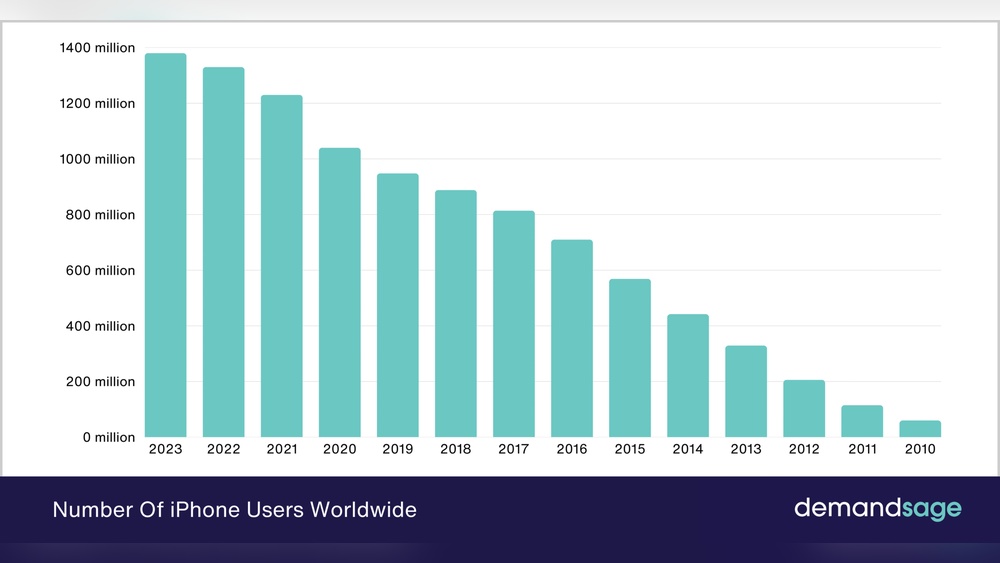
Credit: www.demandsage.com
Optimize Battery Life
Optimizing battery life helps your iPhone last longer throughout the day. Small changes in settings save power. This keeps your phone ready for calls, messages, and apps without frequent charging. Follow these simple steps to improve battery performance easily.
Adjust Screen Brightness
Screen brightness uses a lot of battery. Lower the brightness to save power. Use Auto-Brightness to let the phone adjust based on light. This keeps the screen bright enough but not too bright. It helps extend your battery life without losing visibility.
Manage Background App Refresh
Apps refreshing in the background drain battery. Turn off Background App Refresh for apps you don’t need updating all the time. This stops apps from using power when you are not using them. It also speeds up your phone and saves data.
Use Low Power Mode
Low Power Mode reduces power use automatically. It slows down processes like mail fetch and background activity. Enable it when battery is low or you need extra time before charging. This mode helps your phone last longer in critical moments.
Enhance Security
Protecting your iPhone is crucial for your privacy and data safety. Simple steps can make your device much safer. Take control of your security settings to avoid risks.
Set Up Face Id And Passcode
Face ID uses your face to unlock the phone quickly. It keeps others from accessing your data. Set a strong passcode as a backup. Avoid easy codes like 1234 or birthdates. A good passcode adds an extra layer of protection.
Enable Two-factor Authentication
Two-Factor Authentication (2FA) needs two ways to prove your identity. It stops hackers even if they get your password. Use 2FA for your Apple ID to secure your account. It sends a code to your phone after entering the password.
Regularly Update Ios
Apple releases updates to fix security problems. Regular updates keep your phone safe from new threats. Turn on automatic updates to stay protected. Skipping updates leaves your iPhone open to attacks.
Improve Performance
Improving your iPhone’s performance helps it run faster and smoother. Simple steps can make a big difference. These tips reduce lag and keep your device working well.
Follow these easy methods to enhance your iPhone’s speed and responsiveness.
Clear Unnecessary Storage
Storage fills up quickly with photos, apps, and files. Delete old apps and files you no longer need. Clear cache and temporary data in settings. Free space helps your iPhone work faster and avoid slowdowns.
Close Unused Apps
Many apps running in the background use memory and battery. Swipe up from the bottom and pause in the middle of the screen. Swipe away apps you are not using. Closing apps frees up memory and boosts speed.
Restart Your Device Periodically
Restarting your iPhone clears temporary glitches and frees memory. Turn it off and on every few days. This simple action refreshes your phone and improves overall performance.
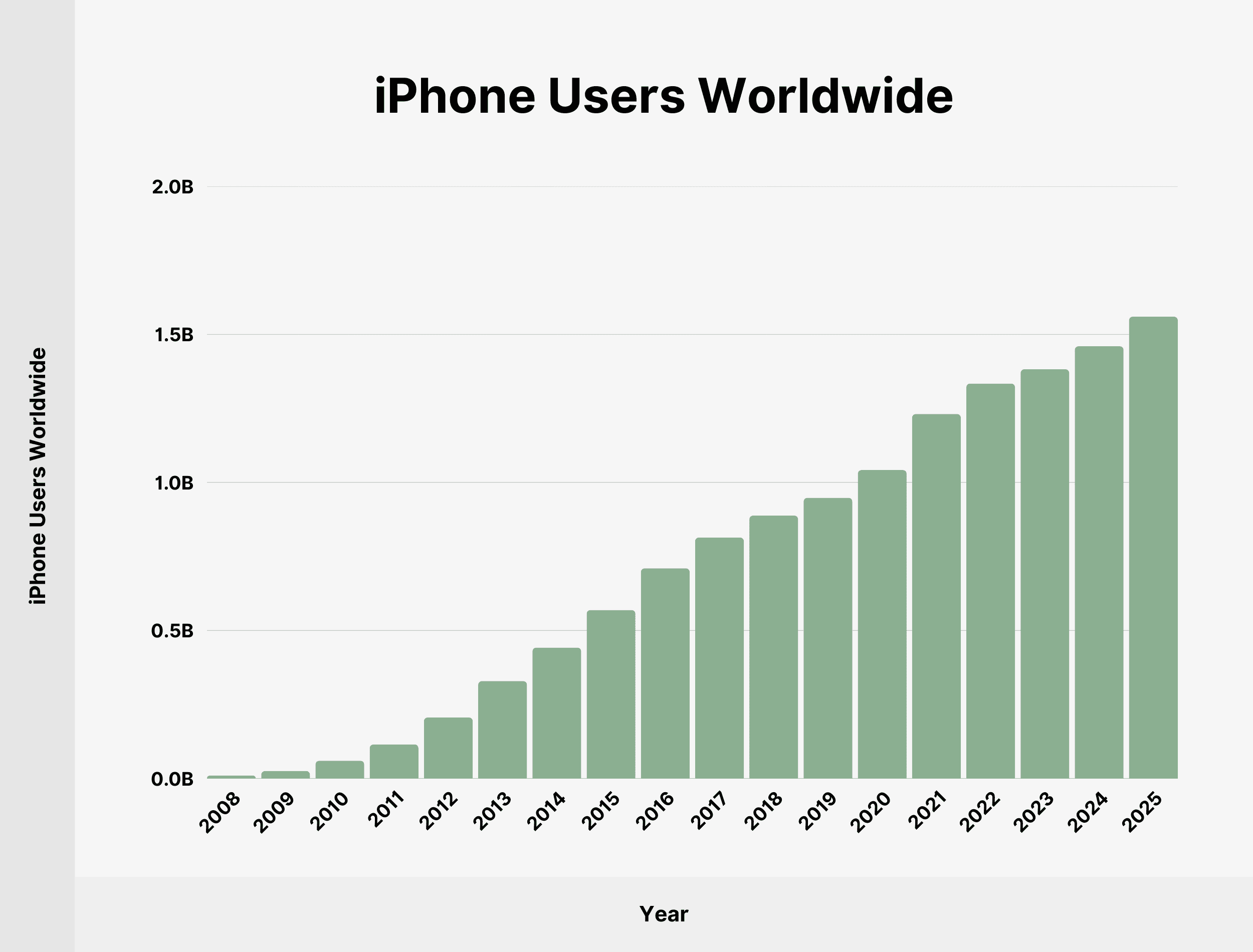
Credit: backlinko.com
Master Camera Features
The iPhone camera offers many features to improve your photos. Knowing how to use these features helps you take better pictures. This section shows simple ways to get the most from your iPhone camera.
Try each feature step by step. See how your photos change with small adjustments. Practice often to build your skills and confidence.
Use Portrait Mode Effectively
Portrait Mode focuses on your subject and blurs the background. This creates a professional look with depth. Hold your phone steady and keep the subject within 2 to 8 feet. Lighting matters. Soft, even light works best. Avoid harsh shadows on the face. Try different angles to find the most flattering shot.
Explore Night Mode
Night Mode helps you take clear photos in dark places. The camera uses longer exposure to capture more light. Hold your phone very still during the shot. Use a tripod or rest your phone on a solid surface for best results. Night Mode turns on automatically in low light. Use it to take sharp, bright night photos without flash.
Edit Photos Like A Pro
The iPhone has built-in tools to improve your photos after shooting. Adjust brightness, contrast, and color easily. Crop photos to remove unwanted parts. Use filters to change the mood or style. Try small changes and compare with the original. Undo any edits if you do not like the result. Editing helps bring out the best in every photo.
Customize Your Experience
iPhone lets you change how it looks and works to fit your needs. You can make your phone simple or full of tools. It helps you find what you need fast and use your phone in your way.
Customizing your iPhone can make it easier to use every day. It saves time and makes your phone feel personal. Here are some ways to adjust your iPhone to suit you.
Organize Home Screen
Put apps in groups to keep your screen neat. Drag and drop apps to move them. Create folders by stacking apps on top of each other. Name folders for easy finding. Keep the most used apps on the first page.
Set Up Widgets
Widgets show important info on your home screen. Add widgets for weather, calendar, or news. Tap and hold the screen, then tap the plus sign to add widgets. Choose the size and place them where you want. Widgets make checking info faster.
Use Focus Modes
Focus Modes help you avoid distractions. Choose modes for work, sleep, or personal time. Each mode can allow or block notifications. Set the mode to start automatically or turn it on yourself. It helps keep your attention where it belongs.
Utilize Siri And Shortcuts
Siri and Shortcuts are powerful tools for iPhone users. They help save time and make tasks easier. These features let you do many things faster. Use your voice or taps to get work done. Explore how to create shortcuts, boost productivity, and control your home devices.
Create Custom Shortcuts
Custom Shortcuts let you combine multiple actions into one tap. You can set shortcuts for daily tasks. For example, send a message, start music, and check the weather at once. The Shortcuts app is easy to use. Just pick actions and arrange them in order. Save your shortcut and run it anytime.
Use Siri For Productivity
Siri helps you do tasks without typing. Ask Siri to set reminders, send texts, or make calls. Siri works with many apps on your iPhone. Use voice commands to open apps or search the web. This saves time and keeps you focused. Siri listens quietly and acts quickly.
Control Smart Home Devices
Siri can control smart home gadgets easily. Turn on lights, adjust the thermostat, or lock doors with your voice. Connect smart devices through the Home app. Say commands like ”Turn off the lights” or ”Set temperature to 72 degrees.” This makes managing your home simple and hands-free.
Maximize Connectivity
Staying connected is important for iPhone users. Good connectivity helps you share files, use the internet, and save data. Knowing how to manage your iPhone’s connections makes your experience better. It also keeps your device working smoothly and saves battery life.
Use Airdrop Efficiently
AirDrop lets you send files fast between Apple devices. Turn on AirDrop in the Control Center. Choose who can see your device: Contacts Only or Everyone. Share photos, videos, and documents without using data. Make sure both devices are close and have Wi-Fi and Bluetooth on.
Set Up Wi-fi And Bluetooth
Connect to a strong Wi-Fi network for faster internet. Go to Settings, then Wi-Fi, and pick a network you trust. Turn on Bluetooth to link headphones, speakers, and other gadgets. Keep Bluetooth off when not in use to save battery. Always check for updates to improve connection stability.
Manage Cellular Data Usage
Control how your iPhone uses cellular data. Open Settings, tap Cellular, and see which apps use the most data. Turn off data for apps you don’t need online all the time. Use Wi-Fi for downloads and streaming to save cellular data. Set data limits to avoid extra charges from your carrier.

Credit: www.newsweek.com
Frequently Asked Questions
What Are The Top Features Of Iphone For Users?
IPhones offer advanced cameras, smooth performance, and regular updates. They provide a secure ecosystem and user-friendly interface, enhancing daily use.
How Can Iphone Users Improve Battery Life?
To extend battery life, reduce screen brightness, enable Low Power Mode, close unused apps, and update iOS regularly for efficiency improvements.
What Makes Iphone Better Than Other Smartphones?
IPhones excel in build quality, software optimization, and privacy features. Their seamless integration with Apple devices creates a cohesive user experience.
How Do Iphone Users Transfer Data To A New Phone?
Users can transfer data via iCloud backup, Quick Start, or iTunes. These methods securely move contacts, photos, and apps efficiently.
Conclusion
IPhone users enjoy a smooth and simple experience daily. The device offers useful apps and strong security. Many people like its clear design and easy controls. Updates keep the phone working well and safe. Choosing an iPhone means joining a large, helpful community.
This phone fits well with work, fun, and staying in touch – just like a well-designed mobilanpassad webbplats. For those who want a reliable device, the iPhone stands out. Simple, smart, and trusted—many find it a good choice.
Vill du optimera din webbplats för mobila användare? Kontakta Hive Creatives för responsiv webbdesign.