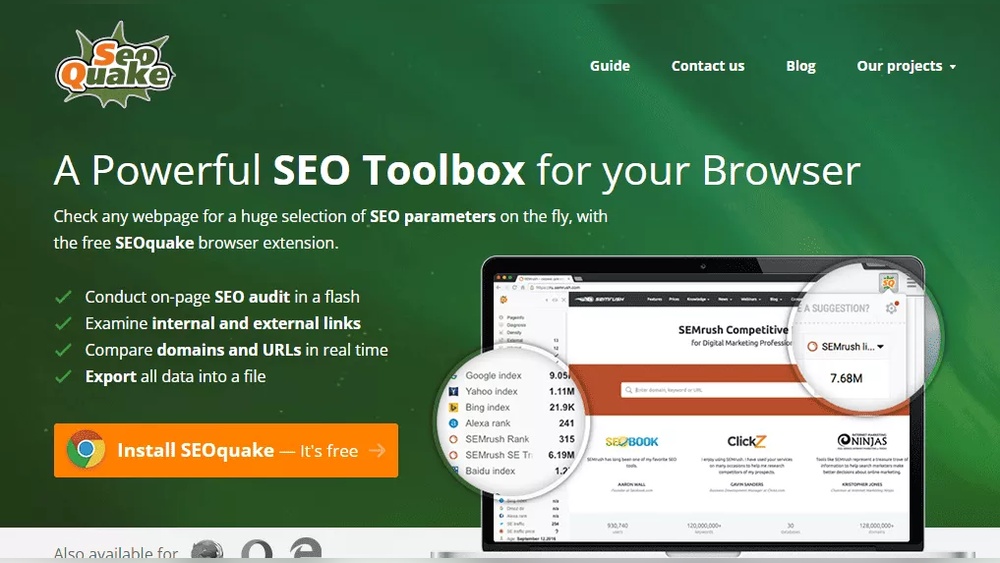
If you want to boost your website’s performance and understand your competitors better, mastering SEOquake configuration is a game-changer. You might already know SEOquake as a handy SEO tool, but are you using it to its full potential?
Setting it up the right way can save you time, provide clearer insights, and help you make smarter decisions for your online presence. You’ll discover simple steps to configure SEOquake so it works exactly how you need it. Stick with me, and you’ll unlock powerful features that can take your SEO efforts to the next level.
Credit: medium.com
Getting Started With Seoquake
Getting started with Seoquake is simple and fast. This tool helps you check SEO data directly in your browser. It shows important metrics like page rank, backlinks, and keyword density.
First steps include installing the extension and setting up your account. These steps prepare Seoquake to work for your website analysis needs. Follow the guide below to begin.
Installing The Extension
Open your browser and visit the official Seoquake website or your browser’s extension store. Click on the “Add to Browser” or “Install” button. The extension downloads and installs in seconds.
After installation, you will see the Seoquake icon near the address bar. Click it to start using basic features. No extra setup is needed for initial use.
Setting Up Your Account
Create a free Seoquake account for full access. Visit the Seoquake site and click “Sign Up.” Enter your email and create a password. Confirm your email to activate the account.
Log in to Seoquake using your new credentials. This allows saving settings and accessing advanced reports. Customize the tool to match your SEO goals.

Credit: kripeshadwani.com
Customizing Seoquake Settings
Customizing Seoquake settings helps you tailor the tool to your needs. You can choose what data to see and how it looks. This makes your SEO tasks easier and faster.
Configuring Metrics Display
Seoquake lets you pick which SEO metrics to show. Choose metrics like Google rank, Alexa rank, or backlink count. Hide metrics you don’t need to reduce clutter. Arrange them in the order you prefer. This way, you see important data at a glance.
Adjusting Toolbar Preferences
The Seoquake toolbar can be set to fit your style. Change its position on your browser screen. Turn on or off certain buttons to keep it simple. Select the toolbar theme to match your browser colors. These changes help you work without distractions.
Setting Up Export Options
Exporting data is useful for reports and analysis. Seoquake lets you choose export formats like CSV or Excel. Set which columns to include in your exports. You can also select the file name pattern. This saves time and keeps your files organized.
Using Seoquake For Keyword Analysis
Seoquake is a handy tool for keyword analysis. It helps you understand how keywords work on your website. You can check how often keywords appear and track their rank on search engines. Seoquake also shows new keyword ideas that you can use to improve your content. This makes your SEO work easier and more effective.
Analyzing Keyword Density
Seoquake shows the number of times each keyword appears on a page. It calculates keyword density as a percentage. This helps you avoid using keywords too much or too little. Keeping the right keyword density improves page readability and SEO. Seoquake highlights keywords so you can quickly see which ones are most common.
Tracking Keyword Position
Seoquake lets you check where your keywords rank on search engines. You can see if your website is on the first page or further back. Tracking keyword position helps you measure SEO success. You can also compare your rank with competitors. This data guides you to adjust your SEO strategies.
Identifying Keyword Opportunities
Seoquake finds new keywords related to your topic. It shows keywords your competitors use that you do not. You can add these keywords to your content to attract more visitors. Seoquake also suggests keywords with low competition. These are easier to rank for and can improve traffic.
Backlink Analysis With Seoquake
Backlink analysis is key to improving your website’s SEO. Seoquake offers tools to study backlinks quickly. It helps you see who links to your site and how strong those links are. This data guides your SEO strategies and helps you grow your online presence.
Checking Backlink Profiles
Seoquake shows detailed backlink profiles for any website. You get a list of all sites linking to your page. It includes the number of backlinks and referring domains. You can spot new links and see old ones. This helps track your link-building progress easily.
Evaluating Link Quality
Seoquake highlights link quality with simple metrics. It shows the authority of linking sites and the link’s type. You learn if links come from trusted or spammy sources. Quality links boost your SEO, while bad links may harm it. This keeps your backlink profile healthy and strong.
Monitoring Competitor Backlinks
Seoquake lets you check competitors’ backlinks fast. You see where they get their links and what keywords they target. This insight helps you find new link opportunities. It also shows gaps in your own backlink profile. Stay ahead by watching competitor link strategies closely.
On-page Seo Audit Features
The On-Page SEO Audit features in Seoquake help you check key elements of your webpage. These tools give clear insights into how well your page is optimized for search engines. You can find errors and fix them quickly to improve your site’s ranking.
Seoquake focuses on important areas like meta tags, content quality, and URL structure. Each part plays a role in how search engines read and rank your page. Let’s explore these features in detail.
Assessing Meta Tags
Meta tags tell search engines what your page is about. Seoquake checks the presence and length of your title and description tags. It flags missing or too long tags that can hurt your SEO. You get a quick view of how well your meta tags match your keywords.
Reviewing Content Quality
Seoquake scans your content for keyword use and readability. It highlights keyword density to avoid overuse or underuse. The tool also checks for duplicate content on the page. This helps ensure your text is clear, unique, and focused.
Checking Url Structure
Seoquake reviews your URLs for SEO best practices. It looks for clean, short URLs with relevant keywords. The tool warns against long or complicated URLs with unnecessary parameters. A good URL structure helps both users and search engines understand your page.
Integrating Seoquake With Other Seo Tools
Integrating Seoquake with other SEO tools expands its usefulness. It helps you get deeper insights and better data. Combining different tools gives a clearer picture of your website’s performance. This section explains how Seoquake works with popular SEO tools.
Combining With Google Analytics
Seoquake adds SEO metrics directly to your Google Analytics dashboard. This lets you see SEO data alongside traffic stats. You can track keyword performance and page rankings easily. It saves time by keeping all data in one place. Use this integration to spot trends and improve your SEO strategy.
Using With Semrush And Ahrefs
Seoquake complements SEMrush and Ahrefs by showing quick SEO checks. It provides fast access to basic metrics while these tools offer detailed analysis. You can cross-check backlink profiles and keyword difficulty scores. This helps confirm data accuracy and find new opportunities. Together, they cover both broad and detailed SEO needs.
Leveraging Data For Comprehensive Reports
Combining Seoquake data with other tools builds stronger SEO reports. It allows mixing traffic, keyword, and backlink information. Use this data to create clear, detailed reports for clients or teams. Reports show all important SEO factors in one view. This makes decision-making easier and faster.
Advanced Tips For Seoquake Users
Seoquake is a powerful SEO tool with many settings. Advanced users can improve their workflow by using extra features. These tips help save time and get better data. They make Seoquake work smarter for you. Follow these simple steps to enhance your SEO tasks.
Automating Seo Reports
Seoquake can create reports automatically. This saves hours of manual work. Set up regular reports for your websites. Choose the data you want to track. Export reports in CSV or PDF formats. Schedule reports to run daily or weekly. Use these reports to monitor your SEO progress easily.
Customizing Seo Parameters
Seoquake lets you change what data it shows. Select only the SEO metrics that matter to you. Adjust the toolbar to fit your needs. You can add or remove columns in the report. Customize the parameters to focus on keywords or backlinks. This helps you see clear and relevant information fast.
Troubleshooting Common Issues
Sometimes Seoquake may not work as expected. Check your browser extensions for conflicts. Clear your cache and restart the browser. Make sure Seoquake is updated to the latest version. Disable other SEO tools that might interfere. If data is missing, refresh the page or re-login. These steps fix most common problems quickly.

Credit: www.oberlo.com
Frequently Asked Questions
What Is Seoquake And Its Primary Use?
Seoquake is a browser extension that provides SEO metrics. It helps analyze websites, track keyword density, and audit SEO performance quickly.
How To Configure Seoquake For Best Results?
Access the Seoquake dashboard, customize metrics, set preferred search engines, and enable SEO parameters relevant to your analysis needs.
Can Seoquake Analyze Competitor Websites?
Yes, Seoquake can analyze competitor sites by showing traffic data, backlink profiles, keyword rankings, and on-page SEO factors instantly.
How To Use Seoquake For Keyword Research?
Use the Keyword Density tool within Seoquake to identify target keywords. It highlights keyword frequency and relevance on any webpage.
Conclusion
Seoquake helps you analyze websites quickly and easily. Setting it up right saves time and gives clear results. Use its tools to check SEO health and find improvement areas. Keep your settings updated for the best experience. Regular use helps you understand website performance better.
Small changes in configuration can lead to better insights. Stay consistent and watch your SEO knowledge grow step by step. Simple tools, smart choices. That’s the key.