Are you one of the many Canva users looking to make your designs stand out? Whether you’re creating social media posts, presentations, or invitations, getting the most out of Canva can save you time and boost your creativity.
Imagine having tips and tricks that turn your simple projects into eye-catching visuals effortlessly. Keep reading, and you’ll discover how to unlock Canva’s hidden features and design like a pro, even if you’re just starting out. Your next great design is closer than you think!
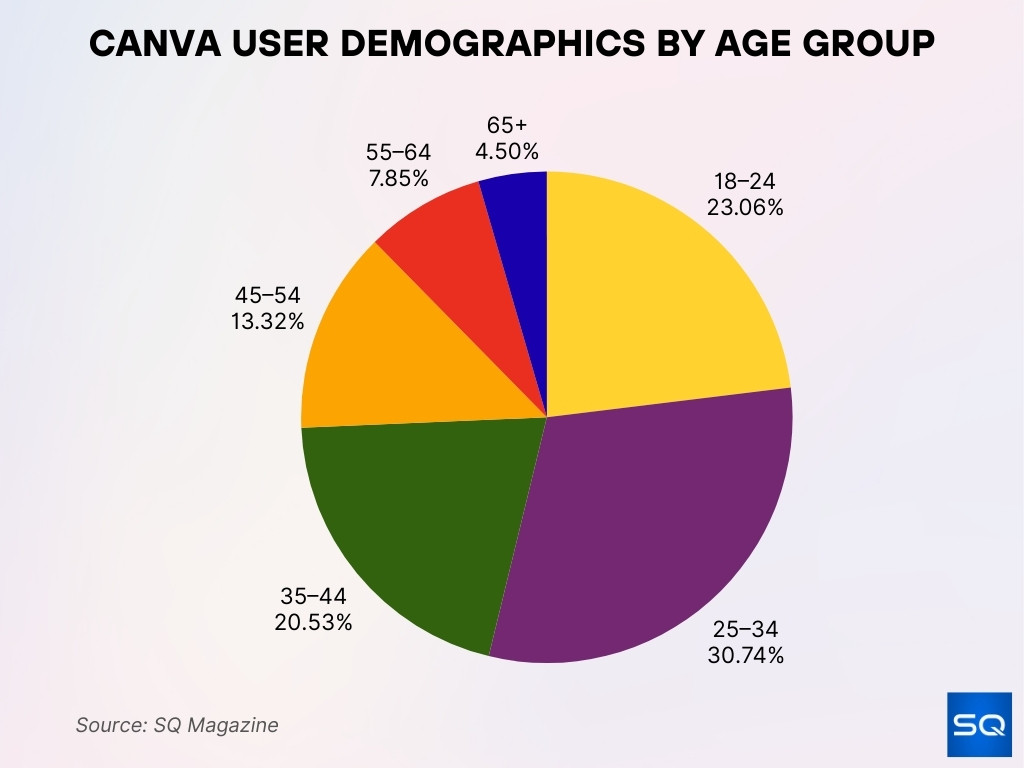
Credit: sqmagazine.co.uk
Getting Started With Canva
Starting with Canva is simple and fun. It helps create beautiful designs quickly. Anyone can use it, even without design experience.
This section guides you through basic steps. Learn to find your way in Canva’s interface. Pick the best template for your project.
Navigating The Interface
The Canva interface is clean and easy to explore. On the left, find tools like templates, uploads, and text. The center shows your design workspace. On the top, access undo, redo, and file options.
Menus and icons are clear. Hover over icons to see their names. Use drag and drop to add items to your design. The interface adjusts to your screen size for ease.
Choosing The Right Template
Canva offers thousands of templates. They are organized by categories like social media, flyers, and presentations. Use the search bar to find specific designs fast.
Select a template that matches your goal and style. Templates save time and give your work a polished look. You can change colors, fonts, and images easily.
Try different templates to see what fits best. Templates help beginners create professional designs with less effort.
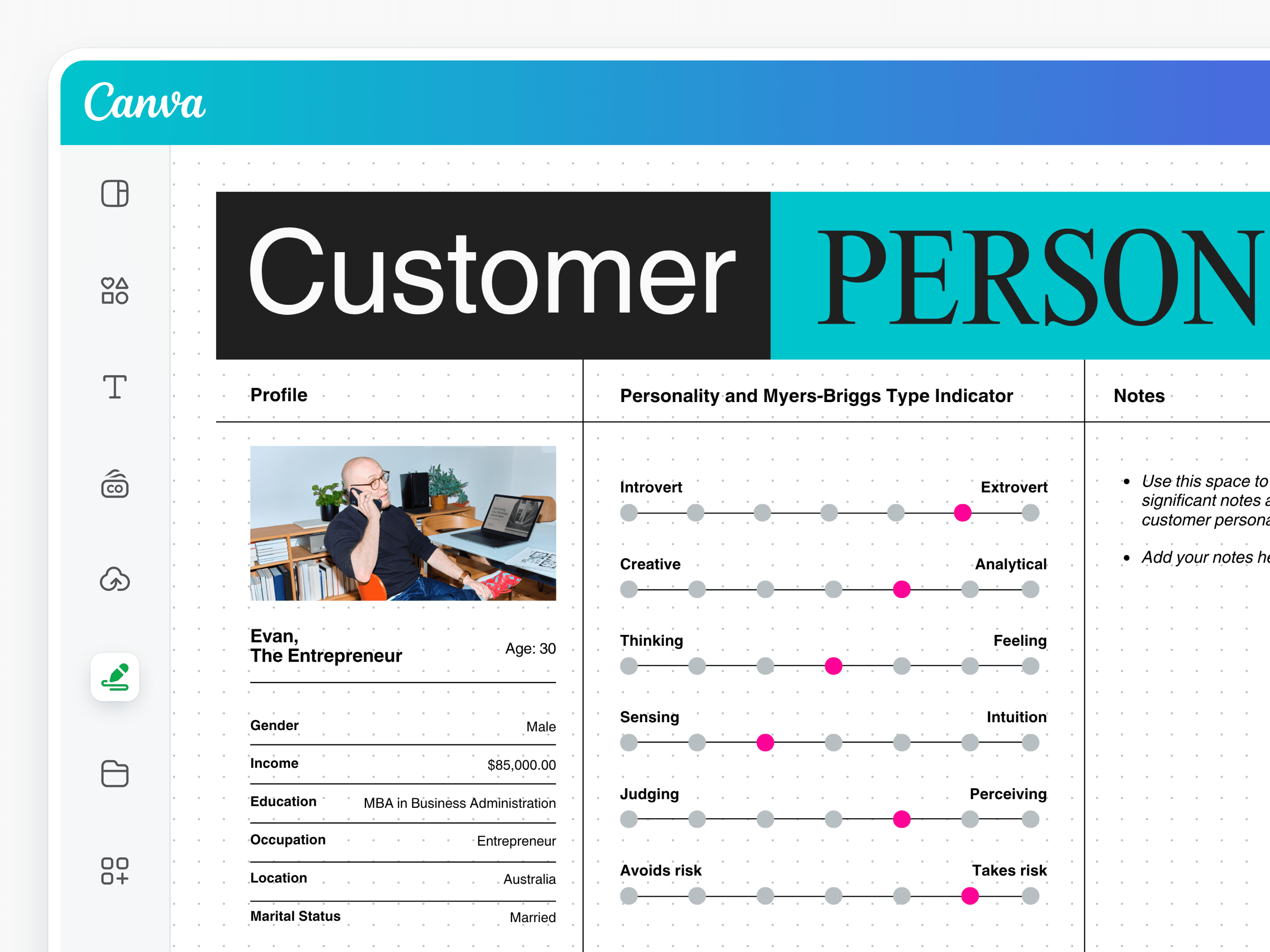
Credit: www.canva.com
Design Fundamentals
Design fundamentals help Canva users create clear and attractive visuals. Understanding basic design ideas makes your projects better. These simple rules guide your choices and improve your work.
Good design grabs attention and keeps people interested. It also helps share your message in the right way. Learning design basics is a great step for all Canva users.
Color Theory Basics
Colors affect how people feel about your design. Use colors that match your message. Warm colors like red and orange feel energetic. Cool colors like blue and green feel calm. Contrast colors to make text easy to read. Use a simple color palette with two or three main colors.
Typography Tips
Choose fonts that are easy to read. Use no more than two font styles per design. Make headings bigger than body text. Align text to keep it neat. Avoid using all capital letters for long text. Adjust spacing between letters and lines for clarity.
Balancing Layouts
Place elements evenly on your page. Balance text, images, and empty space. Avoid clutter by leaving some blank areas. Use grids or guides for better alignment. Keep your design simple and focused. Balanced layouts feel more professional and pleasant.
Advanced Canva Features
Canva offers many advanced features that help users create unique designs. These features give more control and creativity. They let you build professional and polished visuals. Learning to use these tools can improve your design quality.
Advanced Canva tools work well for both beginners and skilled users. They help in making detailed edits and adding special effects. Explore these options to make your designs stand out.
Using Layers Effectively
Layers organize different parts of your design. They let you move and edit items without changing others. You can hide or lock layers to avoid mistakes. Use layers to stack images, text, and shapes neatly. This method keeps your work clean and easy to change.
Customizing Elements
Customize elements like colors, sizes, and fonts to match your style. Change shapes by resizing or cropping for better fit. Adjust transparency to create depth or highlight parts. Personalizing elements makes your design unique and clear. Experiment with settings to find the best look.
Incorporating Animation
Animations add movement and attract attention. You can animate text, images, or entire pages. Choose from simple fades to dynamic slides and zooms. Animation works well for presentations and social media posts. Use it sparingly to keep your design smooth and professional.
Time-saving Tricks
Saving time in Canva helps you finish designs faster. Simple tricks make your work smoother. These tips cut down repetitive tasks. Spend more time creating and less time clicking.
Keyboard Shortcuts
Keyboard shortcuts speed up your design process. Press keys to copy, paste, or undo actions quickly. Use shortcuts for grouping and aligning objects too. Learning a few shortcuts saves many minutes each day.
Using Brand Kits
Brand kits keep your colors, fonts, and logos in one place. Use them to keep designs consistent. No need to search for your brand elements every time. This saves time and keeps your work professional.
Duplicating And Grouping
Duplicating lets you copy elements fast. Use it for repeated shapes, text, or images. Grouping puts several objects together. Move or resize them all at once. These tricks reduce extra steps and speed up edits.
Collaboration And Sharing
Canva makes teamwork easy and smooth. You can work with others on designs without stress. Sharing ideas and files happens fast. This helps teams finish projects quickly.
Collaboration tools in Canva keep everyone connected. You see updates and changes live. This keeps all team members on the same page.
Inviting Team Members
Invite people to your Canva team with just a few clicks. Use their email to send an invite. They join and start working right away. You can control who sees and edits your work.
Commenting And Feedback
Team members can leave comments directly on designs. This makes giving feedback clear and simple. No need for long email chains or extra apps. Everyone knows what changes to make.
Exporting Options
Download your designs in many file types. Choose from PNG, JPG, PDF, and more. Share files easily with clients or coworkers. Export settings also allow for high-quality prints.
Inspiration And Resources
Canva users need inspiration and resources to create great designs. Creativity can sometimes feel stuck. Resources help spark new ideas and guide design choices. Canva offers many tools and materials to support this.
Exploring Canva Templates
Canva has a large collection of templates. These templates cover flyers, social media posts, and presentations. Users can start with a template and change colors, text, or images. Templates save time and give design ideas. They show how to arrange elements well.
Utilizing Free Assets
Canva provides free photos, icons, and fonts. These assets help build unique designs without extra cost. Using free assets keeps projects professional and fresh. Users can mix and match to create new looks. The variety encourages creativity and experimentation.
Learning From Design Communities
Design communities offer support and advice. Canva users share tips, templates, and feedback. Joining groups helps users learn faster and solve problems. Seeing others’ work inspires new approaches. Community input builds confidence and skill.

Credit: www.podbase.com
Frequently Asked Questions
What Is Canva Used For By Users?
Canva is a graphic design tool used to create visuals easily. Users design social media posts, presentations, flyers, and more. It’s beginner-friendly and offers templates, images, and fonts. Canva helps users produce professional-looking designs without advanced skills or expensive software.
Who Typically Uses Canva For Designing Content?
Canva is popular among marketers, educators, students, small business owners, and social media managers. Anyone needing quick, attractive visuals uses Canva. Its accessibility and variety of features suit both beginners and experienced designers alike.
Can Canva Users Collaborate On Projects Together?
Yes, Canva allows multiple users to collaborate in real-time on designs. Teams can share and edit projects simultaneously. This feature improves workflow and makes it easier to gather feedback instantly.
Is Canva Free For All Users?
Canva offers a free plan with access to basic tools and templates. There is also a Pro subscription with advanced features like premium elements and brand kits. Users can choose based on their design needs and budget.
Conclusion
Canva users enjoy creating designs with ease and speed. The platform suits beginners and experts alike. Many tools help make designs look professional quickly. Users save time by choosing from templates and images. Sharing and collaborating on projects is simple here.
Creativity flows without needing advanced skills. Try different features to find what works best. Canva keeps growing with new updates and options. Anyone can make good designs with a little practice. Give it a chance to improve your projects today.