Are you tired of digging through endless search results to find what you really need? What if you could get faster, smarter answers with just a few simple tricks?
Knowing the right Google search tips can save you time, reduce frustration, and help you discover exactly what you’re looking for—every single time. You’ll learn easy, powerful techniques that turn your searches into a breeze. Ready to become a Google search pro and get more done in less time?
Keep reading—you won’t want to miss these game-changing tips.
Credit: www.b2binternational.com
Basic Search Techniques
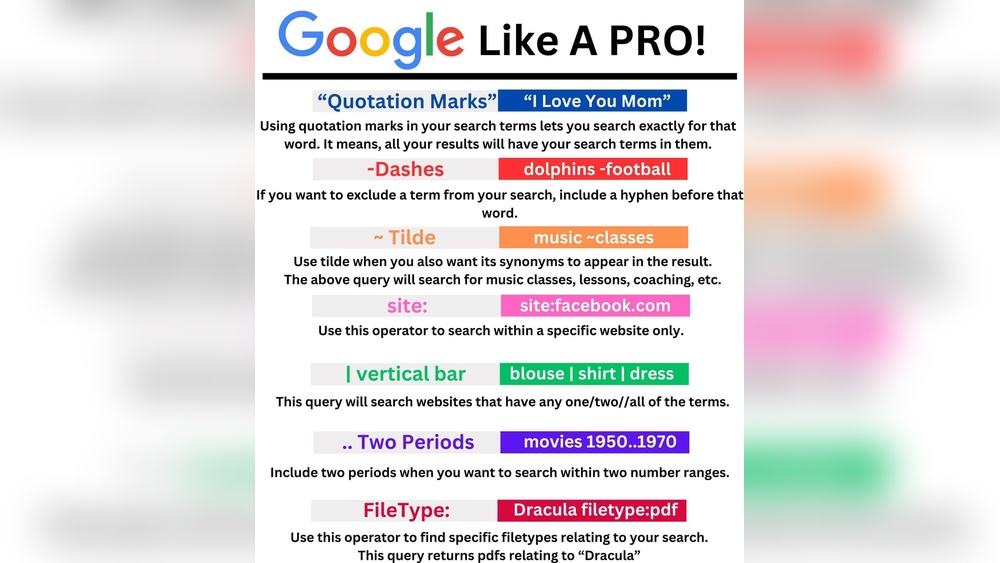
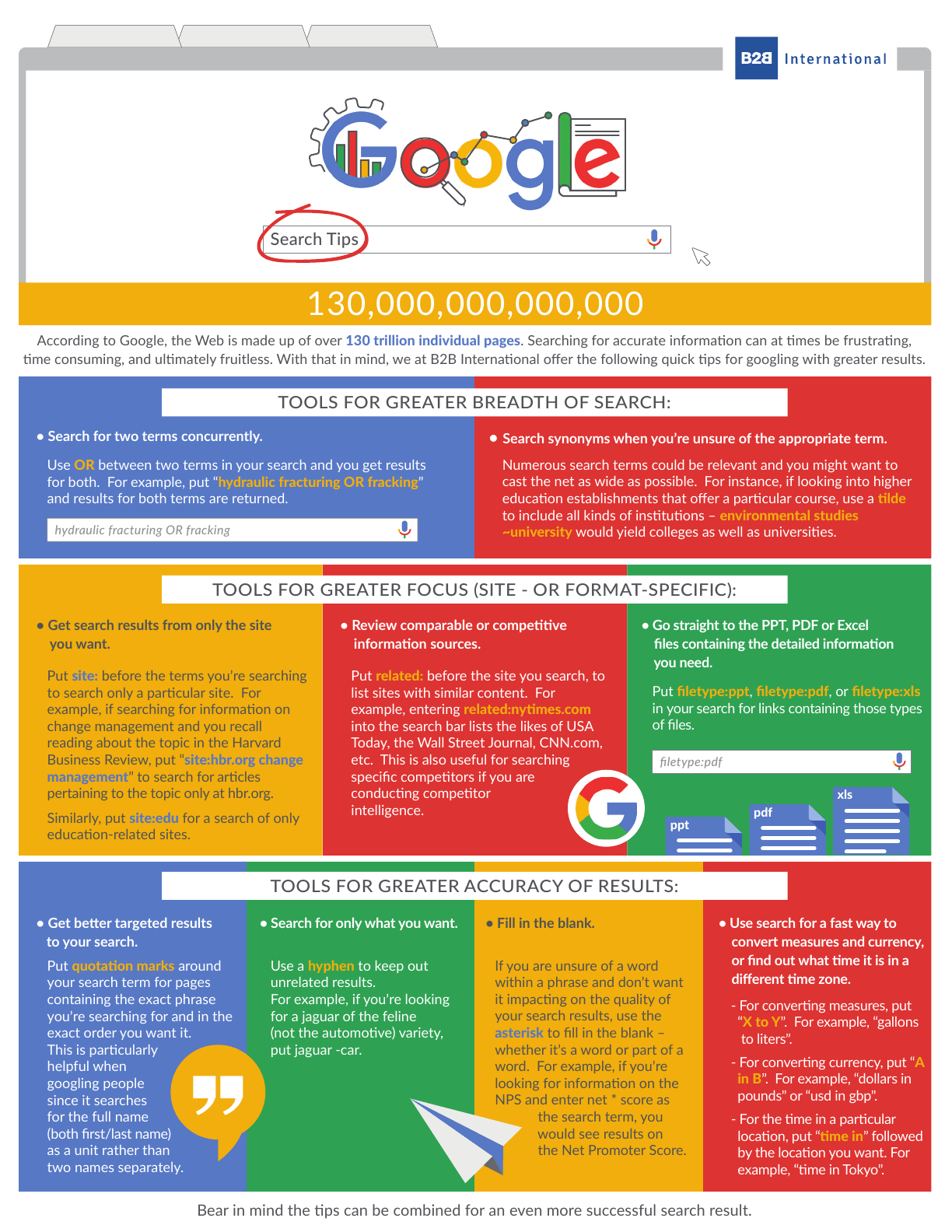
Basic search techniques help you find better results fast. They guide Google to understand exactly what you want. Using simple tricks can narrow down your search. This saves time and gives more useful answers.
Using Quotation Marks For Exact Phrases
Put quotes around words to search for an exact phrase. For example, ”best pizza recipes” finds pages with those words together. Without quotes, Google shows pages with any of those words. This tip helps find specific quotes or names.
Excluding Words With Minus Sign
Add a minus sign before a word to exclude it from results. For example, jaguar -car shows pages about the animal, not the vehicle. Use this to remove unwanted topics or meanings. It makes your search clearer and more focused.
Searching Within Specific Sites
Use site: followed by a website to search only there. For example, site:bbc.com climate finds climate news on BBC. This limits results to one trusted source. Perfect for research or checking facts on a favorite site.
Credit: www.process.st
Advanced Search Operators
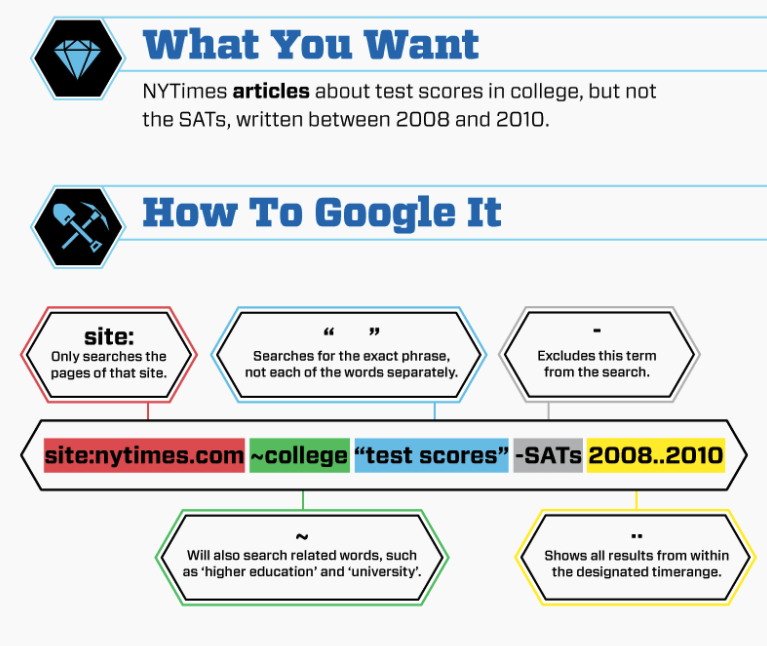
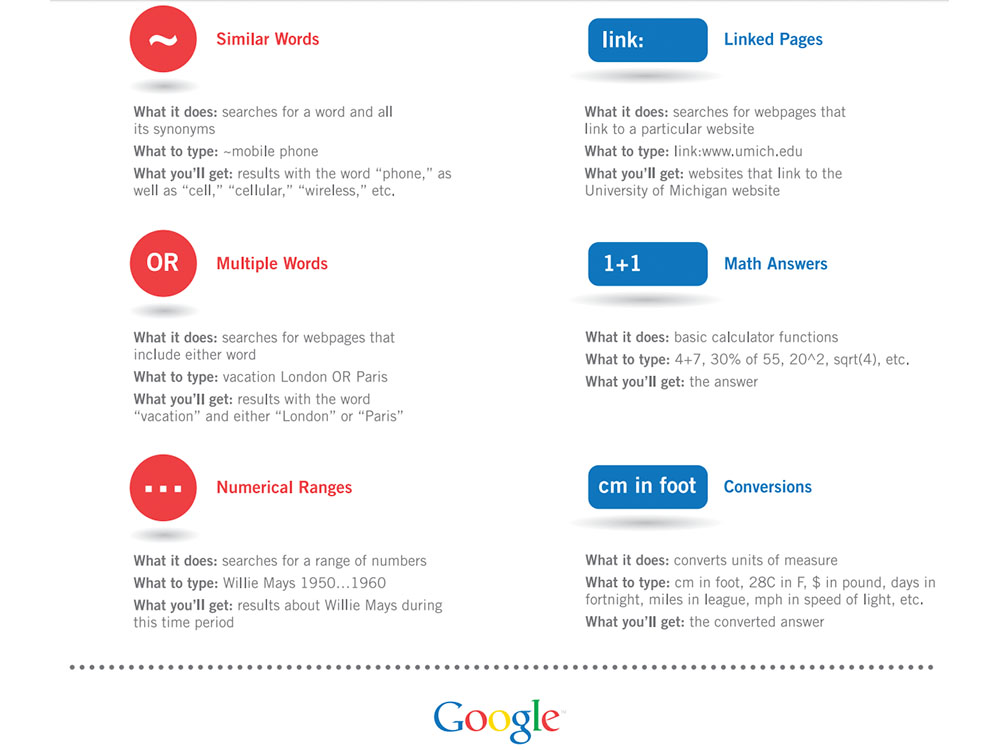
Advanced search operators help you find exact information on Google. They let you narrow down your search with specific commands. Using these operators saves time and makes results more useful. Learning a few simple operators can change how you search forever.
Combining Operators For Precise Results
You can use more than one operator at the same time. This helps find very specific results. For example, use site: to search a website and intitle: to find words in the title. Combining operators filters out irrelevant pages. It makes your search sharp and focused.
Using Asterisk As Wildcard
The asterisk () acts as a wildcard in Google searches. It replaces one or more unknown words in a phrase. Use it to fill gaps in quotes or phrases. This helps find different versions of a sentence or phrase. The asterisk broadens your search without losing focus.
Searching By File Type
Google can search for specific file types. Use the filetype: operator to do this. For example, search for PDFs with filetype:pdf. This is useful for reports, presentations, or guides. It narrows results to only the file types you want.
Leveraging Google Tools
Google offers many tools that help you get better search results. These tools make your work easier and faster. You can find reliable information, track news, and see what topics are popular. Using these tools helps you stay informed and save time.
Explore each tool to see how it fits your needs. They are free and easy to use. Start with these three popular Google tools below.
Utilizing Google Scholar
Google Scholar lets you find academic papers and articles. It helps students and researchers get trustworthy sources. Search by keywords, author names, or journals. You can read summaries and sometimes full texts. It is perfect for school projects or serious research.
Employing Google Alerts
Google Alerts sends you emails about new online content. Choose topics you want to follow. The tool scans the web and notifies you of updates. Use it to track news, competitors, or hobbies. It keeps you updated without checking daily.
Exploring Google Trends
Google Trends shows what people search for most. See popular topics by location and time. Compare different search terms to find which is trending. It helps you understand public interest and seasonal changes. Use it to create timely content or research market demand.
Optimizing Search Settings
Optimizing your Google Search settings helps improve your search experience. It lets you control what results you see and how Google works for you. Adjusting these settings can make searches faster and safer. You can also customize the language and manage your past searches easily.
Adjusting Safesearch Filters
SafeSearch filters block explicit content from search results. This is useful for families or public places. You can turn SafeSearch on or off in your settings. When on, it hides adult images, videos, and websites. This makes searches safer for children and sensitive users.
Customizing Language Preferences
Google lets you choose the language for search results. This helps show results in a language you understand. You can add multiple languages to see diverse content. Language settings also affect spelling and word suggestions. Adjust this to make your searches clearer and more relevant.
Managing Search History
Search history stores your past queries to improve future searches. You can view and delete this history anytime. Clearing history helps protect your privacy. You can pause history tracking if you don’t want Google to save searches. Managing history keeps your search data under your control.
Tips For Mobile Search
Mobile search is quick and handy for many daily tasks. Using Google Search on your phone is different from desktop use. Small screen, touch control, and on-the-go needs change how you search. Simple tips can make mobile search faster and smarter.
These tips help you get better results. Save time and effort with smart tools built into your phone and Google app. Make searching easier with voice, images, and privacy options.
Using Voice Search Efficiently
Voice search lets you speak your queries instead of typing. It saves time and works well when your hands are busy. Speak clearly and use short phrases for best results.
Try commands like “What is,” “Find,” or “Show me.” Pause briefly between phrases. Google understands natural language, so talk like you do normally.
Navigating With Google Lens
Google Lens uses your phone camera to search with images. Point your camera at a plant, product, or text to learn more. It identifies objects and finds related info fast.
Use Lens to scan barcodes or translate signs. It helps find nearby places or copy text from pictures. A handy tool for searching without typing.
Utilizing Incognito Mode
Incognito mode keeps your searches private. It does not save history or cookies on your device. Use it when searching sensitive topics or on shared phones.
Open a new incognito tab in the browser or Google app. Your activity stays hidden from other users. A simple way to protect your privacy during mobile searches.
Credit: www.teachthought.com
Frequently Asked Questions
How Can I Improve Google Search Accuracy?
Use specific keywords and quotation marks for exact phrases. Utilize filters like date range and site search. Avoid vague terms to get precise results. Combining these tips enhances search accuracy and saves time.
What Are The Best Google Search Operators?
Key operators include quotes (””) for exact matches, minus (-) to exclude words, and site: to search a specific website. Using these operators refines results and helps find information quickly.
How Do I Search Within A Website On Google?
Type site: followed by the website URL and your keywords. For example, site:example. com keyword. This limits results to that site, making searches targeted and efficient.
Can I Use Google Search To Find File Types?
Yes, use the filetype: operator with your keyword. For instance, filetype:pdf marketing tips. This filters results to specific file formats like PDF, DOCX, or PPT.
Conclusion
These Google search tips help you find answers fast. Use simple words and quotes for exact matches. Try using a minus sign to skip unwanted results. Search tools and filters narrow down your options. Practice these steps to save time online.
Keep exploring to become more comfortable with searching. Good searches lead to better information. Small changes make a big difference in results. Start using these tips today for easier searching.