Are you struggling to get the most out of SEOquake? This powerful tool can boost your website’s SEO performance, but only if it’s set up the right way.
You’ll discover simple steps to configure SEOquake so it works exactly how you need. By the end, you’ll have a clear, easy-to-follow guide that saves you time and helps you make smarter SEO decisions. Ready to unlock SEOquake’s full potential?
Let’s dive in!
Installing Seoquake
Installing Seoquake is the first step to analyze websites quickly. It helps you check SEO metrics directly in your browser. The process is easy and fast. This guide shows how to install Seoquake correctly.
Supported Browsers
Seoquake works with popular browsers. You can add it to Google Chrome, Mozilla Firefox, Opera, and Microsoft Edge. Each browser has its own store for extensions. Seoquake fits well in these environments. Make sure your browser is updated for best results.
Step-by-step Installation
Open your browser’s extension or add-on store. Search for “Seoquake” using the search box. Find the official Seoquake extension in the results. Click the “Add to Browser” or “Install” button.
Confirm any prompts that ask for permissions. The extension will download and install automatically. After installation, an icon appears near your address bar. Click the icon to start using Seoquake. You may need to refresh open pages to see SEO data.
Credit: www.seoquake.com
Setting Up Seoquake
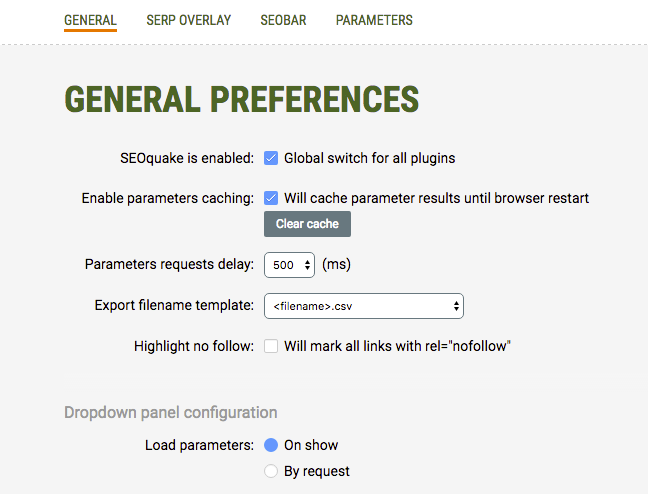
Setting up Seoquake correctly helps you get the best results. This tool shows important SEO data right on your browser. You see metrics about websites and keywords easily. Proper configuration makes your SEO work faster and clearer.
Take a few minutes to adjust Seoquake. Tailor it to your needs. Choose which data you want to see. This guide walks you through the key steps.
Configuring Toolbar Options
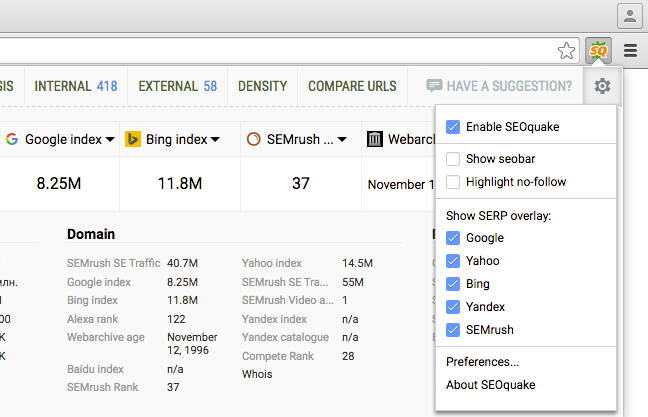
First, open Seoquake’s settings panel. Find the toolbar options section. Here, you decide what buttons appear in the toolbar.
Show only tools you use often. Hide extras to keep the toolbar clean. This saves space and reduces distractions. You can reorder buttons by dragging them. Place the most important ones on the left for quick access.
Also, set the toolbar’s position. Choose to show it above or below the browser page. Pick the spot that fits your browsing style. This small change improves your workflow.
Customizing Metrics Display
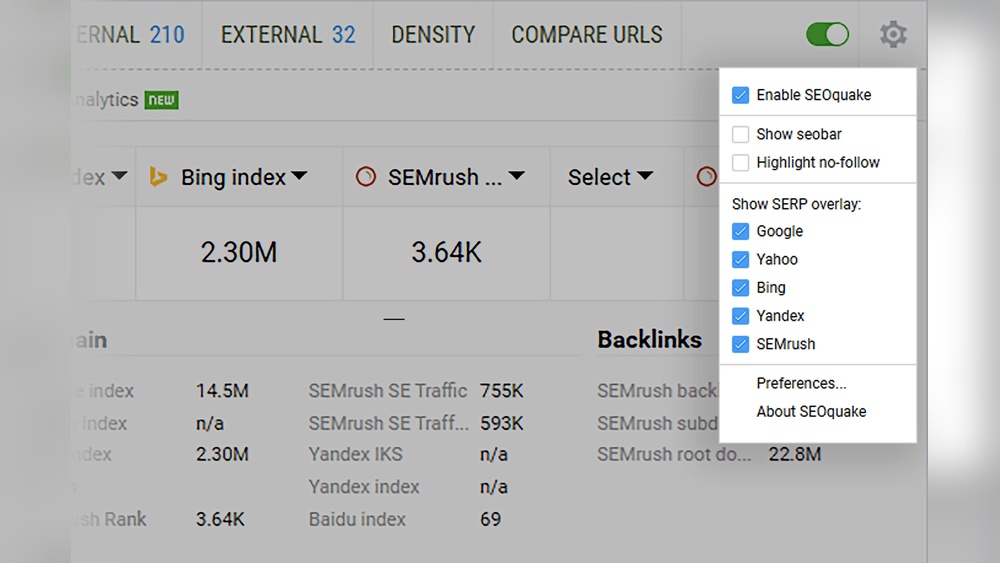
Next, customize the metrics shown in the Seoquake toolbar. Many data points are available, like Alexa rank, Google index, backlinks, and more.
Select only the metrics you need. This keeps the display simple and easy to read. Avoid cluttering the screen with too many numbers.
You can change the order of metrics too. Drag them to arrange by importance. This way, you see key data first.
Seoquake also allows choosing data sources. Pick trusted sources that match your goals. This ensures accurate and useful information.
Using Seoquake For Keyword Analysis
Seoquake is a helpful tool for keyword analysis. It provides clear data to improve your SEO work. You can check how often keywords appear and compare them with your competitors. This helps you find the best keywords to use.
Keyword Density Reports
Seoquake shows how many times a keyword appears on a page. It calculates the percentage of each keyword in the text. This helps avoid using a keyword too much or too little. You get a detailed report that is easy to read. You can see which words are most common on your page. This insight helps make your content stronger and more focused.
Competitor Keyword Comparison
Seoquake lets you compare your keywords with those of your competitors. You can see which keywords they use often. This helps find gaps or opportunities for your own content. By knowing competitor keywords, you can adjust your strategy. It shows which keywords bring traffic to their pages. This way, you can target the right words to improve your ranking.
Backlink Analysis With Seoquake
Backlink analysis with Seoquake helps you understand your website’s link profile. It shows which sites link to you and the quality of those links. This information is key for improving search rankings and avoiding penalties.
Seoquake provides easy tools to check backlinks quickly. It shows important metrics right in your browser. This saves time and helps you make smart SEO decisions.
Evaluating Backlink Quality
Seoquake shows the authority of each backlink. High authority links come from trusted, popular websites. These links help improve your site’s reputation with search engines.
Look for backlinks with high PageRank and low spam scores. Good backlinks are relevant to your website topic. They bring real value to your SEO strategy.
Identifying Toxic Links
Toxic links hurt your site’s ranking and can cause penalties. Seoquake flags links from suspicious or low-quality sites. These links often have high spam scores or come from unrelated content.
Find and remove toxic links to protect your site. Seoquake helps spot these links quickly. Keeping a clean backlink profile improves your SEO health.
On-page Seo Audit
An on-page SEO audit checks all elements on your webpage. It helps find issues that affect search rankings. Seoquake offers tools to perform this audit quickly. It shows data clearly for easy fixes. This process improves your site’s visibility and user experience.
Checking Meta Tags
Meta tags give search engines info about your page. Seoquake shows if your title and description are missing or too long. It highlights duplicate meta tags that can hurt SEO. Proper meta tags attract more clicks and improve ranking.
Analyzing Url Structure
Seoquake checks URLs for length and clarity. Short, simple URLs help both users and search engines. The tool finds URLs with special characters or unnecessary words. Clean URLs improve site navigation and trust.
Reviewing Internal Links
Internal links connect pages within your website. Seoquake shows the number and quality of these links. It points out broken or missing links. Good internal linking helps spread page authority and keeps visitors engaged.
Credit: www.seoquake.com
Integrating Seoquake With Other Tools
Integrating Seoquake with other tools helps you manage SEO data more easily. It allows you to analyze and use information in different ways. Combining Seoquake with popular tools can save time and improve your workflow. This section explains how to export data and use Seoquake with Google Analytics.
Exporting Data To Csv
Seoquake lets you export SEO data into CSV files. CSV files work with many programs like Excel or Google Sheets. Exporting helps you save and share reports quickly. You can choose which data to include before exporting. This feature makes data analysis offline simple and clear.
Using Seoquake With Google Analytics
Seoquake works well alongside Google Analytics. You can compare SEO metrics from Seoquake with website traffic data. This gives a fuller view of your site’s performance. Use Seoquake data to check SEO health. Then, see how it affects visitor behavior in Analytics. Combining both tools helps plan better SEO strategies.
Advanced Seoquake Features
Seoquake offers powerful tools beyond basic SEO analysis. Advanced features let users tailor their experience and save time. These options help manage SEO tasks more efficiently. Knowing how to use them improves website analysis and reporting.
Setting Up Custom Parameters
Custom parameters let you focus on metrics that matter most. You can choose specific SEO data to display in the toolbar. This helps avoid clutter and speeds up your workflow. Parameters include keyword density, backlinks, and social metrics. Adjust settings based on your SEO goals. This makes the tool fit your needs perfectly.
Automating Reports
Seoquake allows automatic report generation for regular updates. Set schedules to receive SEO data without manual work. Reports can include site audit results, keyword analysis, and competitor info. This saves time and ensures consistent tracking. Automating reports helps spot issues early and act fast.
Credit: www.semrush.com
Tips To Maximize Seoquake Efficiency
Seoquake is a useful tool for SEO analysis. To get the most from it, follow some simple tips. These tips help you save time and improve your SEO results. Small changes in how you use Seoquake can make a big difference.
Focus on keeping the tool updated and use it alongside manual checks. These steps improve your website’s SEO health and accuracy. Let’s explore how to do this effectively.
Regular Updates And Maintenance
Keep Seoquake updated to access the latest features. Updates fix bugs and improve data accuracy. Check for updates at least once a month. Outdated tools can show wrong or old information. Regular maintenance also means clearing your browser cache. This helps Seoquake run smoothly without errors. Staying current helps you trust the SEO data you see.
Combining Seoquake With Manual Audits
Seoquake provides quick SEO data, but manual audits add depth. Use Seoquake reports as a first step. Then check key areas yourself, like content quality and site speed. Manual audits catch issues tools may miss. Cross-check keyword use and meta tags in detail. Combining both methods leads to a clearer SEO picture. This approach helps you make better decisions for your site.
Frequently Asked Questions
What Is Seoquake Configuration And Why Use It?
Seoquake configuration customizes SEO metrics displayed in your browser. It helps you analyze websites quickly. You can tailor settings for on-page SEO, backlinks, and keyword density. This boosts your SEO workflow and provides relevant data for better decisions.
How To Customize Seoquake Toolbar Settings?
To customize Seoquake toolbar, click the extension icon and open settings. Choose which SEO parameters to display. Adjust metrics like Alexa Rank, Google Index, and backlinks. Save your preferences to view tailored SEO data on any webpage instantly.
Can Seoquake Configuration Improve Seo Analysis Accuracy?
Yes, configuring Seoquake enhances SEO analysis accuracy. By selecting relevant metrics, you focus on key SEO factors. This reduces clutter and improves your ability to spot optimization opportunities quickly. Accurate data helps optimize content and improve website rankings.
How To Reset Seoquake To Default Settings?
To reset Seoquake, open the extension settings panel. Find the reset or restore default option and click it. This clears all customizations and restores original SEO metric views. Resetting helps fix errors or start fresh with default SEO data display.
Conclusion
Seoquake helps you check website SEO quickly and easily. Setting it up right saves time and gives clear data. Use the tool to compare sites and find weak spots. Adjust settings to match your needs for better results. Keep practicing to understand all its features well.
This way, your SEO work becomes smoother and smarter. Try different options and watch your site improve step by step. Simple tools like Seoquake make big tasks easier every day.